


Verfügbar ab
v0.0.9-betaOnly in Pro version?
YesExport as an Excel file
Single calculation
Wenn du die Informationen in eine Excel-Datei exportieren, oder in eine Excel-Vorlage schreiben möchtest, klicke einfach auf den “Export als Excel-Datei” bei der zu exportierenden Kalkulation.
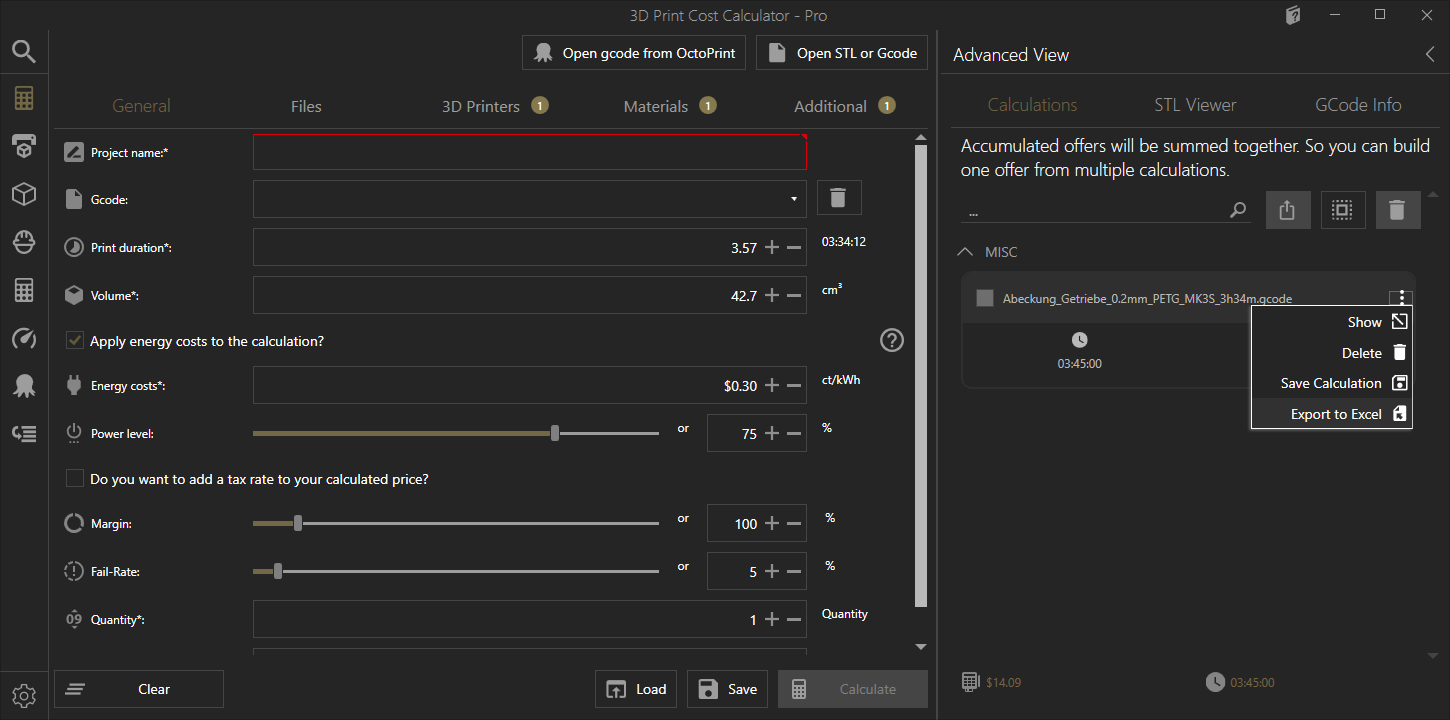
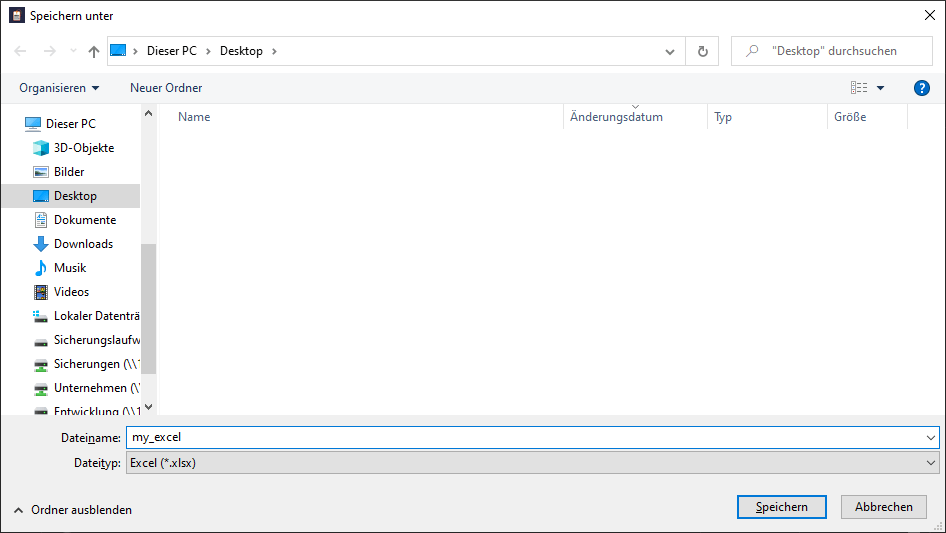
Folgend wirst du aufgefordert einen Dateinamen für deine Excel-Datei zu vergeben.
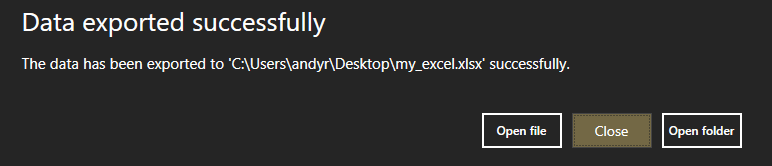
If everything worked, you will get the following message from the tool.
Aktuell enthält der Standard-Export für Excel-Dateien folgende Informationen:
- Printer
- Material
- Project name
- Volume of the extruded filament
- Quantity
- Printing time
- Printing costs
- Material costs
- Energy costs
- Work steps
- Handling fee
- Profit
- Taxes

Multiple calculations
Wenn du mehrere Kalkulationen, als Liste, in eine Excel-Datei exportieren möchtest, musst du die gewünschten Kalkulationen markieren und übergeordnet auf den “Export als Excel-Datei”-Button klicken.
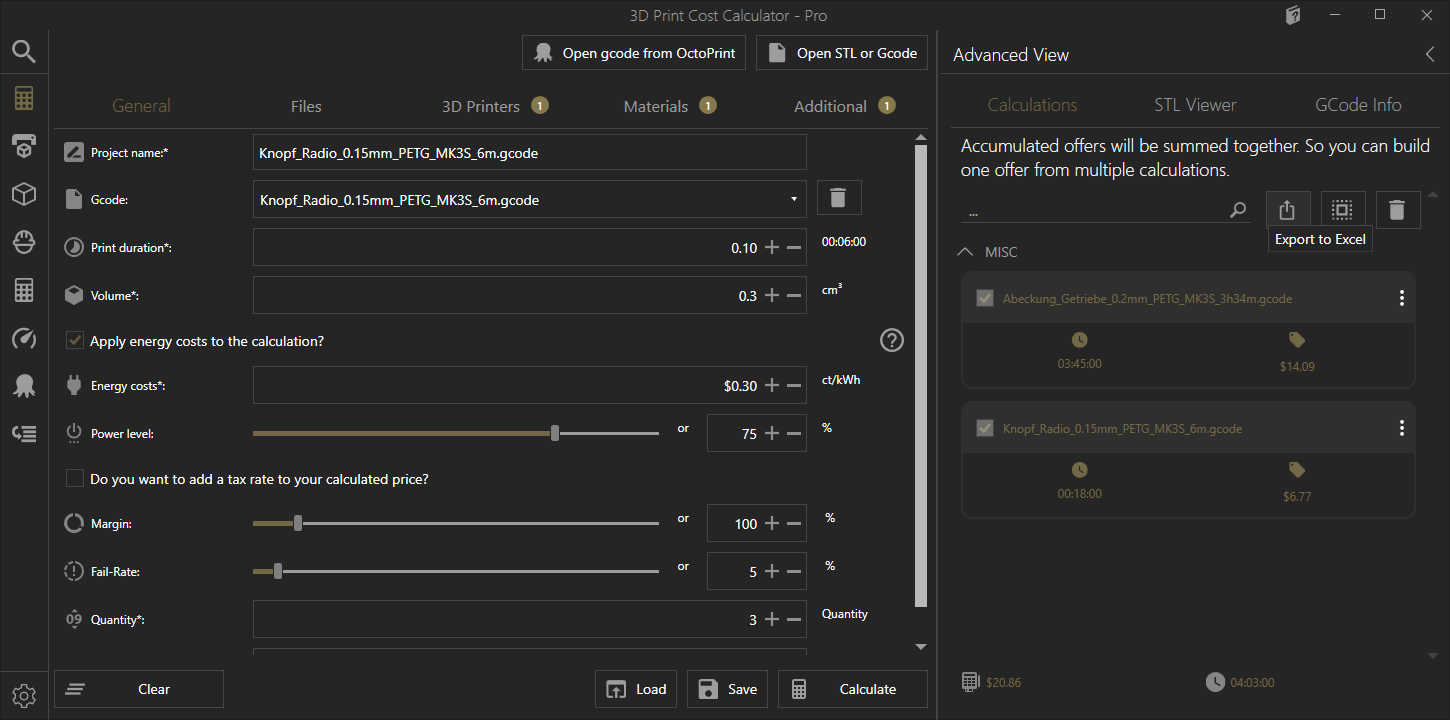
After assigning a file name, the export result looks like this.

Write in an Excel template
Alternativ zu dem Standard-Export kannst du im Tool verschiedene Excel-Vorlagen anlegen und verwenden. Im Gegensatz zu einer einfachen Liste kannst du hier gezielt Werte in bestimmte Zeilen und Spalten schreiben lassen. Dies eignet sich vor allem für Angebots- & Rechnungsvorlagen.
Activate Excel templates
Um diese Funktion nutzen zu können musst du zuerst die dazugehörige Option in den Einstellungen aktivieren. Gehe dazu in den Einstellungen auf “Excel-Export” und aktiviere den Export in eine Excel-Vorlage.
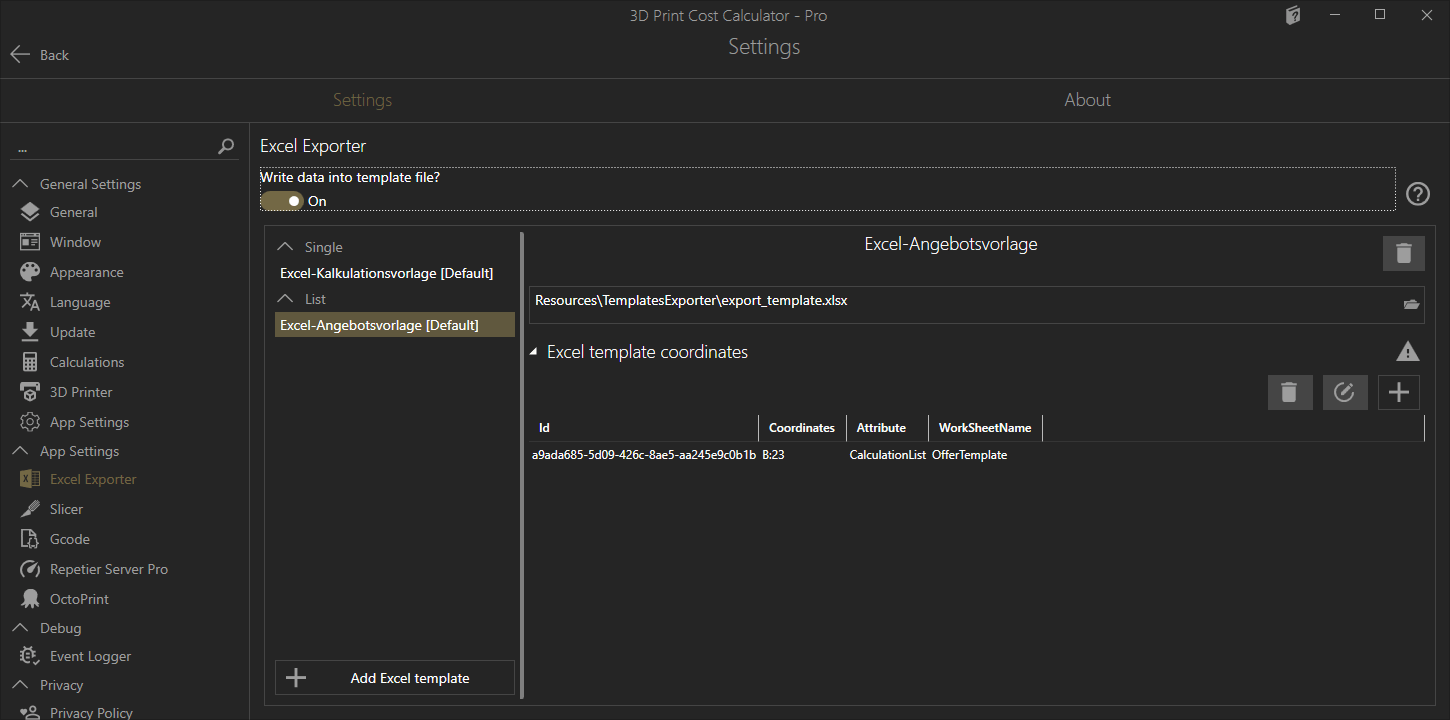
A distinction is currently made between two types of templates:
- Vorlage für eine einzelne Kalkulation
- Vorlage für eine Mehrzahl an Kalkulationen
Standardmäßig findest du jeweils ein Template als Vorlage. Du kannst entweder unsere Standard-Vorlagen abändern, oder eigene, neue Vorlagen anlegen.
Create a new template
Um eine neue Vorlage anzulegen, bereite deine Excel-Datei vor. Diese wird bei dem Schritt des Erstellen bereits benötigt. Wenn du alles zur Hand hast, kannst du mit dem Button „Excel-Vorlage anlegen“ eine neue Vorlage erstellen.
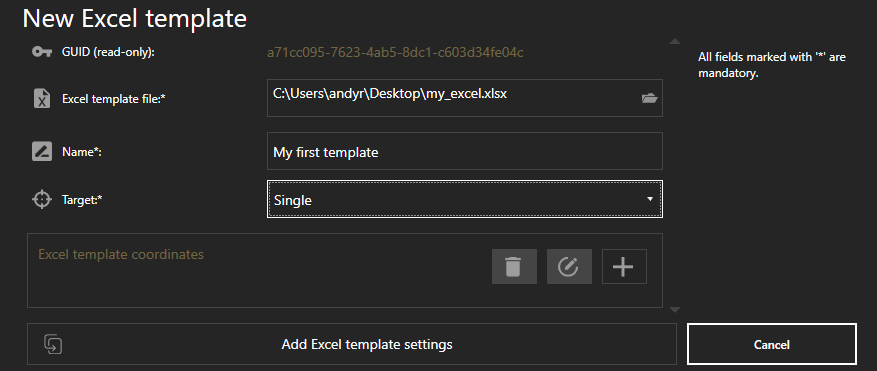
Zu Beginn wähle deine Excel-Datei aus, welche du als Vorlage verwenden möchtest. Bitte beachte, dass das Tool die Datei nicht kopiert, sondern nur den Pfad speichert, wo diese zu finden ist. Bitte verschiebe die Daten nachträglich nicht mehr, oder aktualisiere den Pfad in deiner Vorlagen-Einstellung.
Des Weiteren musst du mindestens ein Attribut einer Koordinate in deiner Excel-Datei zuweisen. Klicke dazu einfach auf den „+“-Button. Dadurch öffnet sich ein weiterer Dialog, indem du Attribute Koordinaten in deiner Excel-Vorlage zuweisen kannst. Der Dialog erkennt automatisch deine Arbeitsmappen.
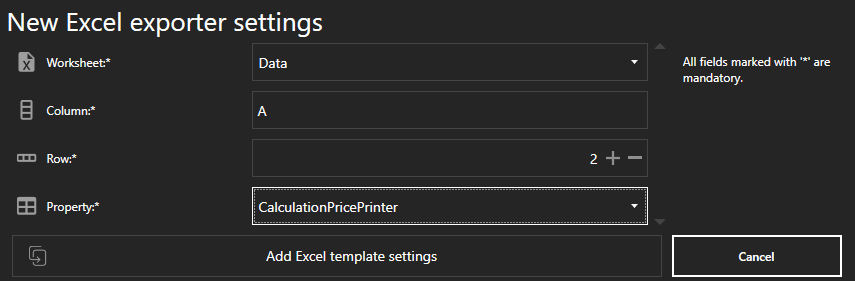
Du kannst Attribute beliebig oft verwenden und dir so deine Vorlage befüllen. Bitte beachte jedoch, dass es Unterschiede zwischen dem Vorlage-Typen „Einzeln“ und „Liste“ gibt.
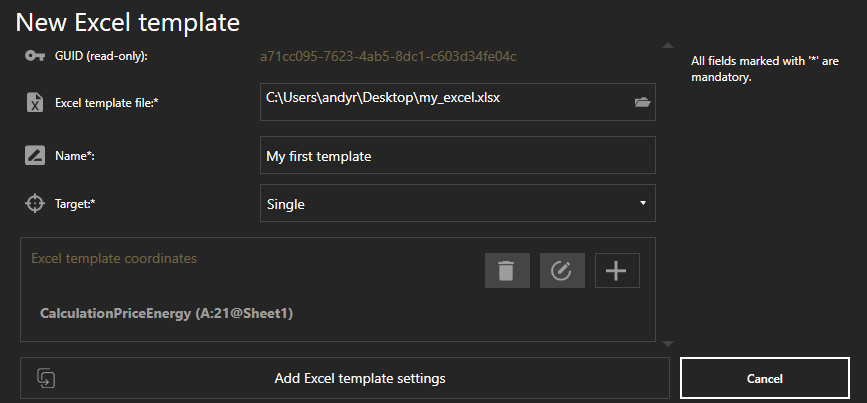
Nun kannst du die Vorlage anlegen und speichern. Ab nun steht diese beim Export zur Auswahl verfügbar, sofern du den Export in eine Template-Datei aktivierst.
Export of the calculation (s) to an Excel template
Sind alle Einstellungen gespeichert, öffnet sich nun ein anderer Dialog, wenn du bei deinen Kalkulationen auf “Export als Excel-Datei” anklickst. Je nach dem, ob du eine oder mehrere Kalkulationen wählst, erscheinen entweder die Vorlagen mit dem Typ “Einzeln” oder “List”.
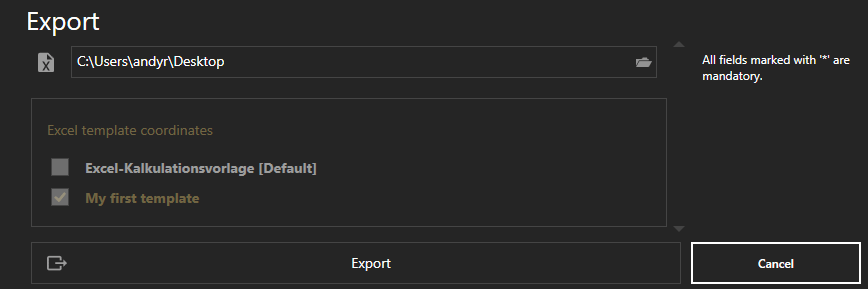
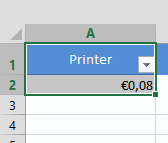
Der Excel-Export schreibt dann die gewünschten Informationen an die angegebenen Koordinaten.
Third party software used
For the export as an Excel file, we use the Nuget package from Syncfusion . You can find the license directly in the tool under “Settings” and in the “About” tab. We are happy to answer any questions you may have.
Save as a calculation file
If you want to save your calculations as a calculation file, please have a look at this Instructions .